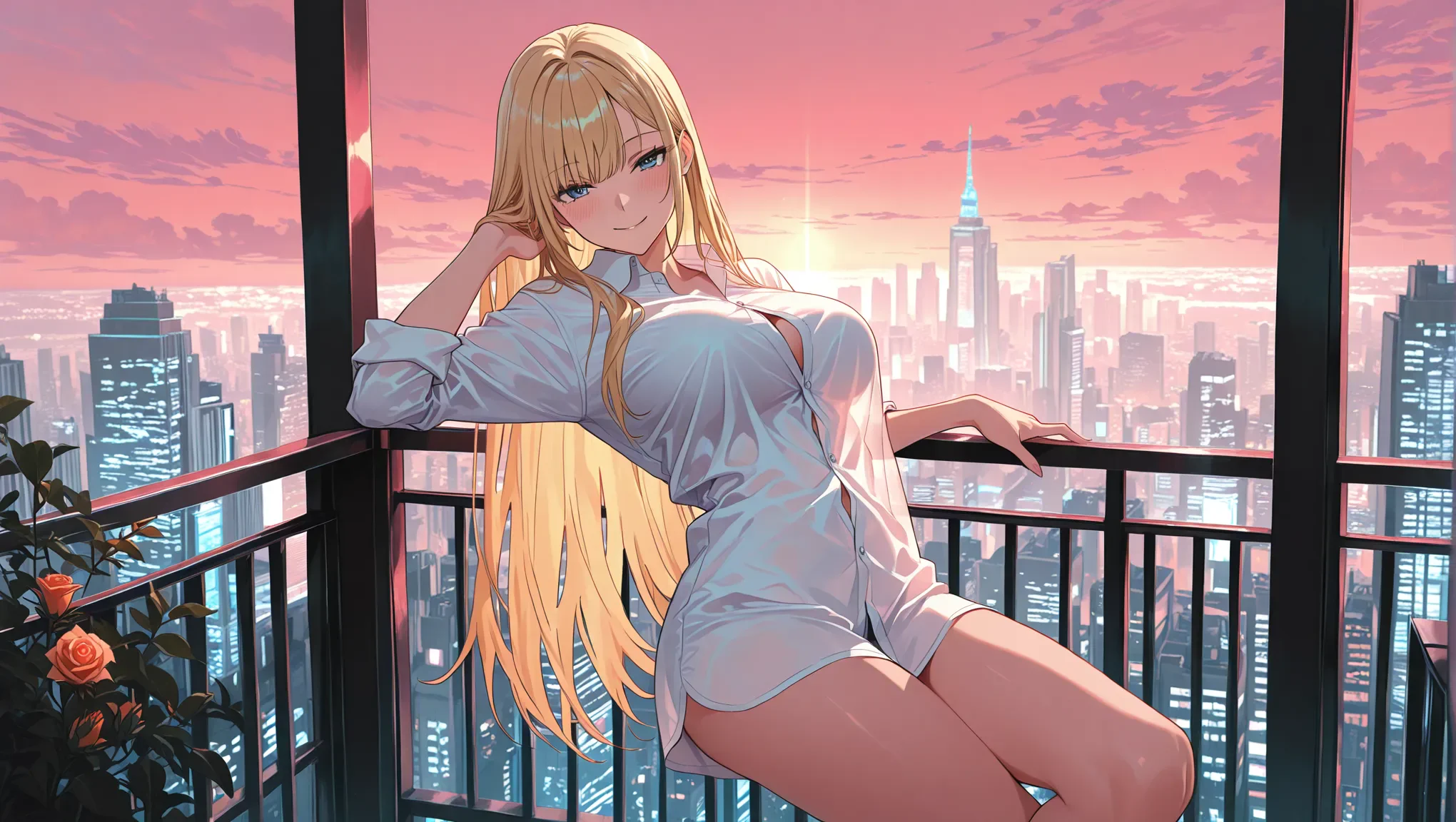
The Gensomnia app currently includes 50 AI art pose presets, plus a Custom option for positions that are not in the catalog. They live in a searchable visual picker: choose a fictional adult character, open Pose, and tap the card that matches the scene. No pose prompt is required.
The Short Answer
Gensomnia has 50 ready-made AI art pose presets inside the app. Open the Pose picker to see the full catalog as visual cards, search by name, save Favorites after signing in, or choose Custom to describe a missing position in plain language.
The count comes from the public GET /poses catalog on August 21, 2026.
Its total field returned 50 visible items. Custom is an additional
creative option, so we call the catalog metric the Published Pose
Count.
| Feature | Current Count | What It Means |
|---|---|---|
| Published pose presets | 50 | Ready-made visual choices returned by the public catalog |
| Custom pose | 1 entry point | Describe a pose in plain language when no card fits |
| Search | Included | Find a known pose by name instead of scrolling |
| Favorites | Included | Save frequently used poses after signing in |
Choose a Character, Then a Pose
Browse 50 pose presets or describe a Custom pose in your own words.
Open the Pose WorkflowGensomnia Pose List: What Is Included?
The 50-preset list is broader than a conventional portrait-pose pack. It covers solo and partner scenes, upright and reclining compositions, close framing, expressive posture, prop-assisted setups, and multi-character scenes. These are the exact PG-13-safe names currently visible in the catalog:
| Pose Preset | Visual Direction | Usually Fits |
|---|---|---|
| Standing | Clear upright silhouette | 3:4 or 9:16 portraits |
| Against Wall | Leaning vertical line | 3:4 fashion-style scenes |
| Lying | Horizontal reclining shape | 4:3 or 16:9 compositions |
| Arched Back | Curved, dramatic silhouette | 3:4 subject-led frames |
| Selfie | Face-forward close framing | 1:1 or 3:4 images |
| Shy Covering | Expressive arms and posture | Closer portrait crops |
| M Pose | Symmetrical seated silhouette | 3:4 centered frames |
| Pressed Into Glass | Front-facing dramatic setup | 3:4 scenes |
| Holding Legs | Compact reclining composition | 4:3 or 3:4 frames |
| Hetero Cuddle | Close partner composition | 4:3 partner scenes |
| Spooning | Soft side-by-side composition | 4:3 partner scenes |
| French Kiss | Tight partner framing | 4:3 or close 3:4 frames |
The remaining cards cover clearly adult solo, partner, group, fantasy, and prop-assisted scenarios. Their exact names and previews stay inside the age-gated product picker rather than on this public page. Search is the fastest way to jump to a known pose; otherwise, scroll the visual grid and choose by silhouette.
How to Choose From Gensomnia's 50 Poses
The best pose is the one whose silhouette, canvas, outfit, and setting agree. Use this four-question check before generating.
1. What is the main body position?
Choose upright, seated, leaning, reclining, or partner composition before adding small gestures and expressions.
2. Does the canvas fit that silhouette?
Vertical canvases favor upright poses; wide canvases give reclining and partner poses more room. Our AI art aspect-ratio guide covers the full framing trade-off.
3. Does the outfit reveal or hide the pose?
Bulky clothes and props can hide the limb separation that makes a pose readable. Test a simple outfit first, then add layers.
4. How many actions are competing?
A pose becomes fragile when several actions compete. Use one base position plus one gesture; the full failure pattern is documented in our AI generation diagnosis guide.
Pose Preset or Custom Pose?
Both options live in the same picker. Start with the visual catalog for speed, then choose Custom when the scene needs your own direction.
| Method | Best For | How It Works |
|---|---|---|
| Pose preset | Fast visual selection from common adult scenarios | Tap one of 50 visual cards |
| Custom pose text | A unique position, gesture, or camera direction | Describe the scene in plain language |
This keeps the workflow fast on both desktop and phone: browse when you want inspiration, search when you know the name, and write a Custom pose when you already have the shot in mind.
How to Use a Pose Preset
From Character Reference to Posed AI Art
- 1
Choose a fictional adult character
Pick a built-in character, upload your own fictional-character artwork, or describe a new adult character in text.
- 2
Open the required Pose card
In Presets mode, Pose is the only required scene field. The picker opens automatically after a character is selected when no pose is set.
- 3
Search or browse the 50 presets
Choose by preview and name. Save repeat choices to Favorites, or open Custom to create an original direction.
- 4
Add clothes, location, and style
These fields are optional. Keep them simple on the first run when pose accuracy is the priority.
- 5
Generate, then change one variable
If the pose is close, keep the character and pose fixed while changing only framing, outfit, or location. This makes the source of improvement visible.
For a Custom pose, write the body position first, then one gesture and
one gaze direction. For example: sitting sideways on a sofa, one hand on the cushion, looking over her shoulder. Avoid mixing camera terms,
multiple actions, and several hand instructions into one sentence. The
same principle explains why
longer AI prompts can produce worse images.
Common Pose Problems and the First Fix
| Problem | Likely Conflict | First Fix |
|---|---|---|
| Pose is ignored | Several actions compete | Keep one body position and one gesture |
| Hands deform | Hands overlap the face or each other | Move hands apart or out of the focal area |
| Limbs leave the frame | Canvas is too tight for the silhouette | Switch to 3:4, 9:16, or a wider composition |
| Outfit changes the posture | Clothes hide joints or imply another body shape | Test with simpler clothes, then add layers |
| Character identity drifts | The face becomes too small in a complex full-body shot | Use a clearer reference or move to a closer crop |
Full-body framing spends fewer pixels on the face. Our AI character consistency benchmark shows how that affects identity.
Find a Pose That Fits the Character
Start with one of 50 presets, then use Custom for scenes unique to you.
Choose a CharacterFrequently asked questions
Gensomnia's public catalog contained 50 published pose presets on August 21, 2026, plus a separate Custom pose card for original directions.
An AI art pose preset is a ready-made body-position instruction presented as a visual choice. Selecting it sends the underlying pose direction without requiring the user to write pose anatomy in a prompt.
Yes. Choose Custom in the pose picker and describe one body position, one gesture, and optionally one gaze direction in plain language.
Use 3:4 or 9:16 for upright and full-body poses, 1:1 for face-led poses, and 4:3 or 16:9 for reclining, partner, or environment-heavy compositions.
The usual causes are competing actions, a canvas that does not fit the silhouette, clothing that hides the limbs, or hand placement that is too complex. Remove conflicts one at a time before changing the character reference.
No. In Gensomnia Presets mode, you can choose a character and pose visually, then optionally add clothes, location, and style. Text is only needed for a Custom pose or a more specific Advanced scene.