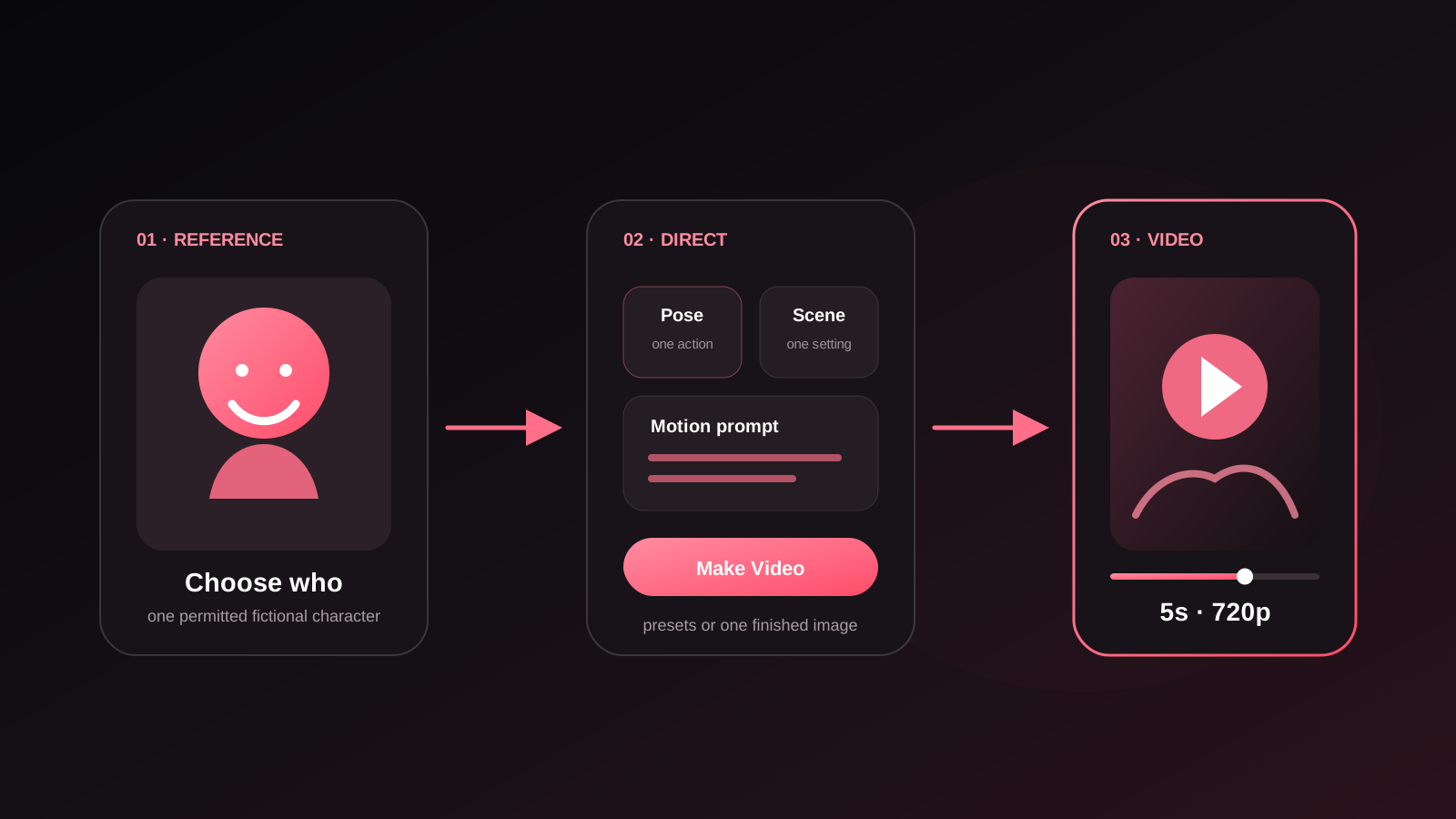
To generate an AI video from an image, start with a finished image of a permitted fictional character and describe only the movement you want. The image already establishes the face, outfit, framing and setting; the motion prompt should direct the action. In Gensomnia you can either build a clip from a character reference and scene presets, or animate an image you already made. Both routes create a five-second 720p video in the browser.
Two ways to make an AI video
The right starting point depends on whether you already have a frame you like.
| Starting point | Use this path | What you control |
|---|---|---|
| A character reference | Video → Presets | Character, pose, clothes, location and style |
| A finished image | Video → Image to Video | The exact starting frame and its movement |
Video Presets is the faster route when you know the character and scene but have not made the final still. Pick the fictional-character reference, then choose the pose and any optional clothes, location and style cards.
Image to Video is the more deliberate route when you already have a frame whose face, outfit and composition are right. Select that exact image from your generation history and animate it without rebuilding the picture first.
How to generate AI video from an image reference
Generate a reference-first AI video in five steps
- 1
Choose a clear fictional-character reference
Use a frame where the face, hairstyle and silhouette are easy to read. Gensomnia does not allow real-person references, celebrities or lookalikes.
- 2
Open the Video mode
Choose Presets if you want to assemble the scene from visual cards. Choose Image to Video if the exact image you want to animate is already in your history.
- 3
Lock the starting scene before thinking about motion
Check the character, outfit, background and crop. Video adds movement to those decisions; it is not the best moment to repair a still you already dislike.
- 4
Describe one readable movement
Write what moves, how it moves and—only when useful—what the viewpoint does. You can also leave the motion field empty for natural movement and a gentle push-in.
- 5
Generate, review and change one instruction at a time
Inspect identity, hands, clothing edges and the background through the whole clip. If something drifts, simplify the motion instead of rewriting every part of the brief.
Why starting from an image helps
Text can describe a general look, but it does not contain the exact face, wardrobe and composition already visible in a picture. Starting from an image turns those choices into a concrete first frame. The motion instruction can then stay focused on what changes over time instead of trying to recreate the character and direct movement in the same sentence.
This is the video version of the same reference-first principle used in image-to-image generation: let the reference carry identity, then use a smaller instruction for the new action. It is especially useful when a character has already appeared across a series of still scenes and the next job is to bring one of those scenes to life.
The starting image still matters. Prefer a frame with:
- the complete face and hairstyle visible;
- clean hands and clothing edges before movement begins;
- enough room in the crop for the intended action;
- the exact outfit and setting you want in the clip;
- lighting that separates the character from the background.
A tight head-and-shoulders image can support a glance or subtle expression, but it cannot suddenly provide space for a full-body walk. Choose the frame for the motion you intend to ask for.
A motion prompt that stays useful
The most practical formula is:
main action + secondary motion + optional camera behavior
For example:
She slowly turns toward the viewer, hair moving in a light breeze, gentle camera push-in.The character takes one step forward as the neon reflections shift, steady eye-level framing.She looks over her shoulder and smiles softly while rose petals drift past, camera remains still.
The prompt does not need to repeat hair colour, body type, outfit and location when those details are already correct in the chosen frame. Repeating them can turn a simple motion request into several competing instructions.
| Vague instruction | More useful instruction |
|---|---|
| Make it cinematic | She turns her head slowly; hair moves in the breeze; gentle push-in |
| Add lots of action | She takes one step forward while the background light flickers softly |
| Move the camera | Slow eye-level push-in; keep the character centered |
Three rules keep the prompt easy to evaluate:
- One main action. A turn, a step or a change in expression gives the clip a clear subject.
- One layer of secondary motion. Hair, fabric, rain, reflections or petals can make the frame feel alive without replacing the main action.
- Simple camera language.
Camera remains still,gentle push-inorslow panis easier to judge than a list of cuts and angles.
What the result looks like
These two published clips begin from scenes made with the same permitted fictional-character reference. They are examples of the workflow, not a claim that every motion or composition will preserve every detail equally well.
Each Gensomnia video submission produces one five-second 720p clip. Video is a Pro feature, and the finished result appears in generation history where it can be played or downloaded. The examples above are muted visual clips; write the shot so its action is readable without depending on dialogue.
Common AI video problems and the first fix to try
The face changes during the clip
Return to a clearer starting frame and reduce the scale of the head or body movement. A strict profile turn, fast spin and dramatic camera move all ask the clip to invent more unseen information than a small three-quarter turn.
The clothes or background deform
Remove simultaneous actions. Keep the character action, environmental motion and camera move from all peaking at the same moment. If the source image already contains broken edges, generate a cleaner still before animating it.
The motion is too weak
Replace mood words with visible verbs. Energetic is a tone; takes one step forward while the coat moves in the wind is an action that can be seen and
checked.
The camera dominates the subject
Ask for a still viewpoint or a gentle push-in. The purpose of the camera line is to support the character action, not compete with it.
Keeping one character across several clips
For a sequence, make the still frames consistent before animating them. Reuse the same fictional-character reference, keep the important identity cues stable, approve each still, and only then turn the chosen frames into separate clips. That gives every shot an approved starting point instead of asking one long generation to hold identity, scene and story at once.
The same review categories used in our six-scene character consistency test work here: face, hair, outfit, proportions and overall recognisability. Video adds a sixth question—whether those traits remain stable from the first frame to the last.
A reference is an anchor, not a guarantee. The two clips on this page are not a multi-run benchmark, and they do not prove superiority over another video tool. They show the user-visible path and the kind of output it produces. A proper comparison would need repeated clips, identical scoring rules and published failures as well as keepers.
Turn a finished frame into motion
Open Video, choose Presets or Image to Video, and direct one clear movement.
Generate an AI videoFrequently asked questions
Yes. Choose Image to Video, select a finished fictional-character image from your history, add an optional motion prompt and generate the clip.
No. In Gensomnia the field can be left empty for natural movement with a gentle push-in. Write a prompt when you need a specific action, environmental movement or camera behavior.
Start from a clear image of the established fictional character, keep the motion request focused and review identity through the entire clip. For multiple shots, approve consistent stills before animating each one.
Each video is a five-second 720p clip. The completed video appears in generation history for playback and download.
Video generation is currently a Pro feature. The image workflow is free to start, so you can establish the fictional character and test a scene before moving to video.
No. Gensomnia allows fictional and stylized characters, not photographs of real people, celebrities or lookalikes. The same safety policy applies to images and video.